Showing posts with label *nix. Show all posts

Saturday, February 2, 2013

Ubuntu in action... - NDAS

Last week, my Windows PC stopped working. (I have to look into it later). At the moment, I am working with my taxes and I needed some files from the old machine, desperately. Luckily, I've been backing up. For this, I use IOCell Networks (also Ximeta)1, NetDisk. NetDisk is a Network Direct Attached Storage (NDAS) device. This seems to be a combination of Network Attached Storage (NAS) and Direct Attached Storage (DAS). As a device, NetDisk is really an external hard disk enclosure that is network enabled and you add hard disk (I added a 1TB drive to it). The difference from other external drive enclosures is that this is network enabled, so once plugged into Ethernet, it can be accessed from any PC on the network. And Direct Access because, you can just plug in the device directly to Ethernet, not through any computer or server.  To add security, they have added a software layer (IOCell/Ximeta NDAS) that you need to install on each PC to access the drive. You will have to register the software with the specific serial # of the NetDisk. Thus, only specific PCs with the right software and serial # register can access the drive. I had installed this software on my Vista machine and thus worked like a charm. (This post relates only to the Linux version of this software. If you need help with Windows version, please refer to their user manual).

Now, at this critical moment, when I needed to access the back up, I couldn't. My main PC is dead. My wife's laptop runs Windows 7 and is not capable of running Ximeta NDAS software (It freezes - even the version 2.72 they suggest to fix the issue). Then my other PC, where I am typing this from, is running Ubuntu 12.04 for which Ximeta does not have a driver or programs for NDisk. At least, not any installation binaries!

But there was hope. Luckily, Ximeta provides (open source) source code at https://github.com/iocellnetworks/ndas4linux/tree/master/ for Linux. Downloaded the source code (If you go to zip tab in the above page, it will download a file named ndas4linux-master.zip. The source directory has several versions. Which version to use depends on your kernel version. (To find your kernel's version, you can use uname -r). For Ubuntu 12.04, I used version 3.2.0. Though I work with large systems at work, I never venture to compile big programs at home. This time, it's different. Desperate situation require desperate measures. I ventured on compiling the driver for Linux myself. I was amazed. Huge set of files got compiled while I watched without major issues. Once the source code is compiled, we need to install and load it. Here is a list of things to do from their documents:

  1. Download a source tarball.

  2. Unpack

  3. CD into the right folder and run make

  4. Change to root or sudo make install

  5. Start ndas as root

  6. As root, or by sudo, register and enable ndas devices with ndasadmin


 Apart from the documents provided, each directory inside the main folder has a README. Read these for instructions on how and where to compile. Here is a little better instructions on how to build it.


Building the software


This is really confusing, as there are many directories and many make files. To do this correctly, you need to be in the right directory. Change to ndas4linux-master/3.2.0/doc (I use 3.2.0; change to the right version) and read

how_to_export.txt first. Here is the summary of how to compile:


cd ndas4linux-master/3.2.0
make linux-rel

This creates a new directory, ndas4linux-master/3.2.0/build_x86_linux. linux-rel is one of the options. This is the final version. But, you can also build dev or debug versions. Take a look at the doc files.


Installing the software

Once you compiled, you need to install the driver and start it. Below commands do that.

cd ndas4linux-master/3.2.0/build_x86_linux/ndas-3.2.0.x86
make

The make command compiles so many files and actually builds ndasadmin and "installs" in /usr/sbin. This is the command we will use to mount NetDisk.


ndasadmin has several options. Please take a look here. To run this command, you need to be root or use sudo. If you just type sudo ndasadmin on command prompt, it will display various options available.


Starting ndas Driver

After building and installing the driver software, you need to start the driver before you can use the device.
sudo ndasadmin start


Mounting the Device

You also need to register the device serial #, before you can mount the device volumes. The readme file, how_to_use_ndasadmin.txt inside the version folder (3.2.0 in my case) lists the steps to install and run NDAS software. To register the device, you need to find the serial number (and write key) of the NetDisk device. These are available at the bottom of the box.

sudo ndasadmin register <SERIAL_NUMBER> -n NetDisk1
sudo ndasadmin enable -s 1 -o r

brings up the NetDisk volumes. NetDisk1 is just name I gave to the device. This can be anything. Also, register option have a slight variation with Serial # and Write key. See the readme file mentioned above.


First, I didn't see them come up. Then I found them listed in "Places" option in Gnome desktop menu. To see the device listing, you can use the following command:

cat /proc/ndas/devs


To disable/unmount the device, use the following commands:

sudo ndasadmin unregister  -n NetDisk1
sudo ndasadmin disable -s 1 -o r


Further Help

Like I said earlier, the doc folder inside the version you are working with (ndas4linux-master/3.2.0/doc) actually contains all the instructions. Here are some of the files in that directory.

how_to_build.txt

how_to_export.txt

how_to_use_ndasadmin.txt


Note that the software seems to be constantly evolving, so it may not support all the functionalities, the actual device can support. And if you need more help, here are some links if you want to learn more about Iocell Ximeta on Linux.


  1. http://ndas4linux.iocellnetworks.com/

  2. https://github.com/iocellnetworks/ndas4linux/wiki/How-to-export-NDAS-source-for-different-architectures

  3. http://ndas4linux.iocellnetworks.com/trac/index.cgi/browser/ndas4linux/release

  4. http://ndas4linux.iocellnetworks.com/kermit/index.cgi/wiki/Usage

  5. http://ndas4linux.iocellnetworks.com/kermit/index.cgi/wiki/HowToBuildDEB


1 IOCell acquired Ximeta's NDAS; so you will see the names used interchangeably here and the web. See here

Sunday, January 6, 2013

Ubuntu: File Managers

I am continuing to use Ubuntu as my primary desktop and I am loving it(I still use Windows desktop. It has it's advantages). As I get used to the environment, I am always looking to mimic familiar options from Windows. This time around I was looking to find out about adding applications to Context menu in Ubuntu. Like always, I stumbled on something bigger - File Manager(s).

Earlier I posted about Linux architecture and how different layers of the Operating System can be replaced/added. If you read that post, you will see how I struggled with Unity Desktop that came with Ubuntu 12.04  and eventually learned to replace it with Gnome desktop. Apparently, each desktop has it's own flavor of File Manager and then some.

If you are coming from the Windows world (like I did), here are some terminologies for you. What we call Windows in Windows Operating System (like Windows XP) is really the Desktop. We saw earlier there are many different Desktops including Gnome, KDE, Unity etc. The Desktops have several parts and one of them is a File Manager. This is called Windows Explorer (it used to be called File Manager in versions before Windows 95). There are choices for Explorer, but I've not seen many people replacing the Windows Explorer with another.

In Ubuntu (for that matter entire *nix [Unix, Linux]) world, everything is customizable and/or replaceable. I was able to replace my troubled Unity desktop with Gnome desktop and overcome some issues earlier. When I started researching on Context Menus, I stumbled on Nautilus package, which is the default File Manager in Gnome. Since Ubuntu 12.04 didn't support Gnome desktop natively, it didn't install Nautilus either. It had a File Manager called Thunar instead. And, when I installed Gnome, unknowingly, I had also opted for Nautilus, default file manager for Gnome. Apparently, there are at least 20 different File Managers available. See this blog.

This site has a nice picture of the Linux Architecture.

In Gnome Desktop, you get to File Manager by clicking on Places menu on top.

Workspace 1_057Fig 1: Menu to reach File Manager

Screenshot from 2013-01-06 19:06:37Fig 2: Nautilus File Manager

So what about Context Menu?
Coming back to adding context menu, it's done using Nautilus Actions.I had to install it first. (This you could do it in Ubuntu Software Center or use apt-get command). Once you installed it, you can add context menu items as shown below:

Nautilus Actions ConfigurationFig 3: Nautilus Actions Configuration

And of course, after changing the context menu you need to reload the Nautilus File Manager. To do this, you can type the below command:

<code>killall nautilus</code>

This kills all processes associated with the particular program (here nautilus). For Windows users, this is like going to Windows Task Manager and doing "End Program". See here for more on killall. Incidentally, they also talk about killing nautilus!!

Running KDiff3 from Context Menu
The program I was trying to add to context menu was KDiff3 (it's a great diff utility, try it, if you haven't already. I use it on Windows as well). Nautilus Actions allows you to add programs to the context menu. I select 2 files to be compared and right click to select and open KDiff3 and voilĂ ! KDiff3 opens and diff's the files automatically!

Nautilus Context MenuFig 4: Nautilus Context Menu


kdiff3_074Fig 5: Kdiff3 From Context Menu


References

  1. http://www.tuxarena.com/2011/06/20-file-managers-for-ubuntu/

  2. http://www.techdrivein.com/2010/05/what-is-nautilus-elementary-and-how-to.html

  3. https://live.gnome.org/Nautilus/Screenshots

  4. http://www.tellmeaboutlinux.com/content/linux-architecture

  5. http://en.wikipedia.org/wiki/File_manager

  6. http://askubuntu.com/questions/88480/adding-extra-options-to-right-click-menu

  7. http://www.omgubuntu.co.uk/2011/12/how-to-add-actions-emblem-support-back-to-nautilus-in-ubuntu-11-10/

  8. http://www.linfo.org/killall.html

Friday, December 7, 2012

Quick Tip: How to exit from SQL*Plus on command line

This is about running SQL*Plus in a batch mode. Suppose you have a script (shell or batch file) that calls SQL*Plus to run a SQL in a batch mode. I am talking about running it from Command line, thus:

$ sqlplus <user_id/password>@SID @<sql_file_name)

Chances, you will want to exit SQL*Plus as soon as the script is done (EOF file is reached in SQL file), so we can continue our processing.

Typically, we add an EXIT statement at the end of the SQL file itself and this will force SQL*Plus to quit. What if you forgot or couldn't add EXIT (you use the same script in different scenarios). If you don't have an EXIT or QUIT statement at the end of your SQL file, you will end up seeing the SQL Prompt:

SQL>


Here is a quick tip to exit Sql*Plus after it's done with the script:

exit | sqlplus <user_id/password>@SID @<sql_file_name)

(That's it. Essentially piping exit into sqlplus command! When the End of file is reached, SQL*Plus returns to the shell and your shell script can go on!

This tip works on both DOS (Windows command prompt)_ and *nix systems.

Saturday, October 20, 2012

Quick Tip - *nix: Back Quote

While researching on an issue with a Java Stored procedure at work recently, I had to go to oracle udump directory to find out if there was any errors. To do this, we do grep like,
grep -i -l "nullpointer" *

to list the names of all log files that may contain NullPointer exceptions. -i = ignore case, -l = list only file names.

This tip is to be able to use that list in another command using back-quote (`). This is the character (also called grave accent) before 1 on PC keyboards, if you haven't used it. Back-quote is used for command substitution in *nix (unix, linux) systems. It's available in

For eg, to list those files with full directory listing:
ls -lt `grep -i -l "nullpointer" *`

Or to open the trace files found by grep, all at once in vi:
vi `grep -i -l "nullpointer" *`

(and then use :n in vi to go through the files)

Below line copies the found files out to another directory,
cp `grep -i -l "nullpointer" *` ~/nullsod

(where nullsod is a directory in my home directory.)

Command Substitution (using Back quote)

This process of executing commands inside back-quote is called command substitution. The command inside the back-quote is executed first and the output is plugged into the commandline that contains it. For e.g.,
echo `date`

returns System Date. Notice a back-quoted command is mostly embedded inside another. If you miss the echo there, it will try to return the date string to the shell which it will try to execute as a command which results in "Command not found" error.

Back-quote is often used in scripts to set the result into a variable. For e.g., we can save the date value in a variable called dt. Then we can use this variable in script.
$> export dt=`date +"%m%d%C%y%H%M%S"`
$> echo "Date is $dt"
$> cp output.log output.log."$dt"


#Where, $> is the shell prompt

In the above list, Date is executed with a specific format (mmddyyyhhmiss). This is then stored in a variable called dt. First we echo dt. Then we use dt to rename a file with date suffix, very handy when you are running a script on a regular basis and want to save the output in timestamped logs.

Incidentally, the statements above, show another kind of substitution, a string or variable substitution using double quotes("). Any expression inside a double quote is often evaluated first and substituted in the command that uses it. Notice the difference: double quote simply evaluates a string/variable and plugs in the value. A back-quote on the other hand, actually executes the string inside as a command and returns the  output to the enclosing command.

You can combine many of these expressions, and that's what makes it all powerful. If you haven't tried back-quote yet, try it. You will be glad you did!

Useful links

  1. Command Substitution in Unix

  2. Unix Shell Substitutions

  3. Advanced Bash Scripting


† udump - user dump - contains user trace files in Oracle database; all print statements from stored programs in Oracle (Java, PL/SQL) end up here.
‡ udump directory may have a large # of files depending on activity, in which case, grep may not work with wild card (*). You may have to refine the grep parms.

Quick Tip - *nix: ulimit

Last week one of our DBAs called me. She was trying to install Oracle 11g. She obtained zip files for the installation from another co-worker. This had many zip files, probably one per installation disk. She was trying to unzip the files and got some error.

Like always, I got down to business of checking and googling. When I tried to unzip the first file, it gave an error as to missing zip file headers. It suggested that the file could be part of a multi-part zip file. Good old google suggested how to combine a multi-part zip file. Just cat each file into one big file, then unzip it:
cat file1.zip file1.zip file3.zip > fullfile.zip

Unzip failed on the fullfile.zip. When I checked the file size, it had he same size as the 1st file, the largest file. Strangely, they both had the size of about 1GB. More googling revealed role of ulimit!

Resource limits on *NIX systems (ulimit)

All *nix systems (all flavors of Unix and Linux) have a limits on system resources per user. The limits include cpu time per process, number of processes, largest file size, memory size, number of file handles etc (file size is defined in number of blocks.). The root user gets unlimited resources, but all others are assigned a finite settings as defined in /etc/security/limits on AIX. (/etc/security/limits.conf in Ubuntu). Here is a good post, as to why you want to limit resources for users. To check the limits, use ulimit command.
ulimit -a

There are Hard limits (ulimit -Ha) set by the root and Soft limits (ulimit -Sa) a user can set herself.  See this blog for details on using ulimit.

Role of ulimit in our problem

Continuing our story about faile Oracle install above, when we did ulimit -a, one particular entry caught our attention. file size was set to 1GB (approx., remember it's set in blocks?). Bingo, this is why when we try to create the fullfile.zip, it got truncated at 1GB, the limit for the user. Apparently, the DBAs are supposed to have unlimited file size. She got onto calling the Unix admin.

To cut the story short, apparently ulimit played a role in getting the original zip files as well. When she downloaded the files, it truncated the biggest of files to 1GB each. Our first file happened to be one and that's why it looked incomplete. To make matters worse unzip and gzip ended in pointing to a multi-part zip file, which they weren't.

Like I said, this is true for all *nix systems. This is very powerful, in controlling runaway processes sucking system resources away. But there may be a legitimate situation like above, where you need to override the settings. So, next time your file seem corrupted or truncated, remember to check ulimit.

References

  1. ulimit in IBM AIX

  2. ulimit on HP-UX

  3. ulimit on Linux - blog

  4. ulimit on Unix - blog


Depending on the *nix you are using, this may be variously mentioned as limits per user, per shell and it's descendants. Some of the settings like cpu time is applied to individual processes user/shell is running.

Monday, September 3, 2012

My Journey with Ubuntu Contd - Switching Desktop

Last time, I posted about upgrading to Ubuntu 12.04, Precise Pangolin. It has a user interface (desktop) called Unity. It looked different from Gnome desktop I got used to in ver 10.x. It was an adjustment, but it was easy to get used to. One problem I had though was that it kept freezing up at random. I believe this is a bug in the interface, judging by the bug reports opened for the issue.

Installing a new Desktop


While researching the issue, I found out that I could replace my desktop interface easily with Gnome desktop I used to like!! This blew my mind!! What? Replacing desktop? You mean re-installing complete OS, right? At least, that's what I am used in the MS-Windows environment. No, not with Linux. Here is a link I used in getting the new desktop installed. This put Gnome right beside Unity. All I had to was switch to Gnome when I logged in (See Fig. 1). So far, it's working fine. Apart from this, my applications and settings are still there. It connected to network and printer right away, so I didn't miss anything. (Note: While logging in I had to use Gnome (No effects), to get the same desktop look I had in 10.x.).

[caption id="attachment_455" align="alignnone" width="274"]Gnome in Pangolin Fig 1. Gnome in Pangolin[/caption]

(Note: to get to this list, click on the ubuntu icon while on the login screen. This is like pressing F8 to get to Safe/Normal mode in MS Windows).

Coming from MS Windows environment, I didn't think this was possible*. Not that I am a Micorsoft basher or anything. I've worked on MS Windows, most of my working career. I believe, MS-Windows is part of the evolution process a lot of us went through in the Software industry. Even so, I couldn't avoid being disappointed with MS-Windows. First of all, there is no such option with MS-Windows. With windows, if you wanted a different desktop, you would have to reinstall different version of OS. Remember Vista? When it came out it was buggy. Microsoft  offered that you could "downgrade" to XP one time. But then, you lost the shiny new OS called Vista. On top of that, when I switch to a new OS like that, I am sure to face an issue or 2 to get it to work with the set-up I have. No, this was not supposed to be possible.

(Note *: There were some custom desktops available from 3rd party, but nothing fitted in smoothly, as Gnome did here! Further, they typically ran on top of the existing windows desktop, so they were slower).

Secret lies in Linux Architecture


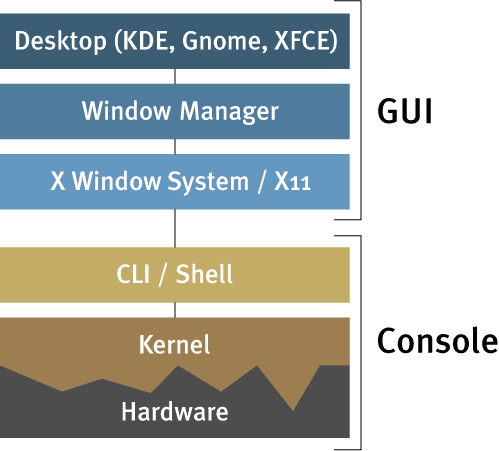
So, I researched this a bit more. Apparently, Ubuntu (actually any linux and Unix)  OS is built in a modular way. One layer can be easily replaced without disturbing another. As you know, underneath it all, there is kernel, the core shell in the OS. Then there is command line interface which is what we were used to, if you were using Unix. Add to that, a windowing layer, you got a Desktop. So far, this is the same way in Windows. (At least it used to be through Windows 98). But there ends the similarity. Fig 1, shows the building blocks of a Linux OS.

[caption id="" align="alignnone" width="499"]Linux Archirecture Linux Architecture - Courtesy Paul Cooper (pgc) on Flikr[/caption]

So, when I installed Gnome, I basically added to the desktop layer at the very top. The underlying layers (including Window Manager and X-Windows) were unaffected. This is why, my set-up was unaffected. Wow, truly modular programming! Similarly, I could actually replace a hardware and Linux would simply find appropriate drivers (or you can install it) and everything is working again! I couldn't help compare this to MS-Windows, if I changed hardware (even as simple as moving the hard drive with the OS to a new machine), it will be a nightmare to get it working again. Kudos to Linux community.

I really hope they fix the bug(s) in Unity, so I can get back to it in the future. But, I am not exactly missing anything here. Because, Gnome is actively developed in the community. Further, my desktop is definitely running faster than with Unity. (Another complaint about Unity on the web).

P.S: If you are wondering how I got the screen capture of the logon page, that's another strength of Linux (Again, you couldn't do this in windows). There is a whole slew of things to read up on X-windows. I will post more on this later. For now, refer to the link in the references below.

References


  1. Gnome Desktop

  2. Unity Desktop

  3. Ubuntu

  4. How to add Gnome Desktop to Ubuntu 12.04

  5. Another site about installing Gnome Desktop

  6. How to get screen capture of the Login page


Now I can proudly say, my PC is

Saturday, August 4, 2012

My journey with Ubuntu Contd - On to Precise Pangolin

Linux via Ubuntu

I posted about my first Ubuntu machine earlier. Though I've used Unix for a long time and Linux for a bit for work related activities, this was the first time, I boldly went for Linux at home! Ubuntu made it possible with a great Windows like Desktop.

It was an experimental machine we built with Intel Atom PC (Atom 230 160GHz X2). It worked well with Ubuntu 10.x I installed earlier. In fact, for over a year I managed with10GB hard drive. Sure, it complained about running out of space constantly and I kept moving my files out to Windows PC (Remote Desktop from Ubuntu to Windows worked like a charm). With limited memory and resources, it worked so great, often times better than my newer, more powerful HP machine with Windows Vista.

It has been an amazing journey with Ubuntu. A lot of software I came to know on a Windows PC over the years, are now available on Linux, free and sometimes with better functionality. I installed, Firefox, Google Chrome (it is called Chromium), Libre Office (successor of Open Office, replacement for Microsoft office, I use this a lot on Windows as well) and even my mail client, Mozilla Thunderbird. I could do Remote Desktop to Windows, copy and share files, print to a HP printer almost automatically (on a Windows PC, each time I have to install drivers, here Linux almost finds its own). And of course, internet works right out of the box in Linux.

Moving on, Upgrade

Recently, I decided to continue using Linux and it was time to upgrade. It's still running on an Atom mother board, but I added a new 1TB hard drive. This time I wanted to try to different flavors of Linux. So, I tried installing Ubuntu 12.04, Fedora and Debian. Debian interface was not that great, but seems more powerful. Wiki page on Debian mentions about 3000 volunteer developers developing it over a time period (since 1993). Definitely a matured operating system. But, it's also overwhelming for a first time user.

Fedora 17 is looking nice too. It's community project sponsored by Red Hat. In version 17, it's installation is as easy as Ubuntu and desktop was as flashy too. I tried all 3. I first installed all the 3. But, some how I was drawn back to Ubuntu. Nothing against the other 2, except Ubuntu as ever was easier and better for Ubuntu beginners.

I've also looked at Open Suse and Oracle Linux. So far, I haven't tried them out yet.

Partitioning

Each Linux Dist. comes up with their own Partition Editor which was easy to use. Ubunbtu has GParted, a Partition Editor which is really user-friendly. I remember using Fdisk on DOS systems earlier. You have to exercise, so much caution, otherwise you could lose all partitions. GParted lets you "play" with partitions and it doesn't save anything until you confirm it. When you partition the drive using GParted, you specify which drive belongs to what location (File System and Mount Points). Ubuntu assigns File System names automatically and you can assign a mount point (like /, /home, /boot etc) to each partition. I researched on the Internet and came up with a simple partitioning scheme (I gave 300GM to Ubuntu):

Recommended Partitioning Scheme for a simple Ubuntu installation


PartitionLocationSizeComments
Partition 1/boot10GB
Partition 2/50GB
Swap File5GMTwice the size of memory
Partition 3/home235GM

This was good, until I installed too many software and root "/" was running out of space. I booted with the Ubuntu Install CD and adjusted the partitions. It was so easy, as I had a lot of empty space to widen the partitions. (Getting to the partition Editor on installer CD was a bit tricky. I had to make the PC boot sequence to CD first. Then when CD booted, I had to pick "Try Ubuntu". Gparted is part of the installation disk).

Multiple Operating Systems

Since I got a bigger disk, I decided to go with all the 3.I tried Ubuntu, Fedora and Debian, side by side. I also tried Partition editor with multiple OS installed. Each OS will see the other OSs partitions in Partition Editor. I learned about sharing the Home directory with multiple OS and changed the mount point for /home to point to the same partition in each OS. Make sure to un-check the "Format" Checkbox, otherwise new install will overwrite any earlier home directory.

One problem I had, having all 3 OS installed was a problem with Grub (Linux Boot Loader). Some how, it was hanging in one of the OSs. (I mixed 64-bit OS for Fedora and Debian, so it was not a fair comparison. Later I tried 64-bit Ubuntu, it crashed too! Intel Atom 230 is claimed to be 64-bit compatible, but 64-bit OS didn't perform well. Probably has to do with memory limitation too. I only have 2GB).

Ubuntu, again!

Having issues with multiple OS installations, I decided to go with one main OS. After reading a bit about comparisons on-line, I decided to go with the known devil (sorry to call it that), Ubuntu. But Ubuntu itself has changed much. Version 10.x was a great OS. The new version, Ubuntu 12.04 LTS is code-named Precise Pangolin ( Apparently Ubuntu 10.x was called Lucid Lynx). LTS means Long Term Support series (love the way they come up with these names!!), they already have plans for Ubuntu 14.04 through 2019 (See here), that's long-term for you and me!!

Precise Pangolin User Interface

To be honest, I was a bit disappointed with the latest version of Ubuntu initially. It still has a windowing desktop, but they have changed the software behind it. They have switched their Graphic interface to use what's called Unity Interface. Prior versions used Gnome interface. To me Gnome was a bit more user-friendly. I am still getting used to the new launcher bar that shows quick launch icons for applications. Every new Application installed already gets pinned to the launcher bar and you can unlock it.

[caption id="attachment_423" align="aligncenter" width="300"] Ubuntu 12.04 Pangolin Desktop[/caption]

The problem is the launcher bar also includes those that are running. Only thing that shows it is running is the small triangle on either side of the icons. (For e.g, see image on the left.   The white triangle on the left shows that the settings->Appearance is running.

[caption id="" align="aligncenter" width="115"] An icon on the Launch Bar; Triangle on the left indicates running[/caption]

Apart from these, how you get to things is also different. The Gnome toolbar that had "Applications", "Places" etc disappeared. To get to the applications, you either go through Launch bar and if you don't have it there (Launch bar is menu of icons, so size is limited), then you go to Dash Home  by clicking on the icon on the Launch bar and then type the application you need. For e.g., to get Kompozer (HTML editor that's not in my Launch Bar, I have to pull up Dashboard and type some chars to get to the application.


Sort of going back in time, it seems. (Windows 7 changed their task bar too. It works something similar to launch bar here. Why do they keep changing something we are used to??).

Apparently, I am not the only one that's not happy with Unity Interface. This link goes one step further and talks about how to install and get back Gnome desktop on Pangolin.

Copy the old files

I wanted to copy the files I had on the old Linux drive. After a bit of fumbling, I put the old drive inside an external hard drive enclosure and connected to the machine as a USB drive. This worked like magic. The hard drive showed up as a mounted volume.  All I had to do was copy the home directory.

[caption id="attachment_411" align="aligncenter" width="535"] External Volumes are mounted and show up in Devices List[/caption]

Unfortunately, I had encrypted my home directory when I installed Ubuntu last time. So I tried the other way around. I went into BIOS menu (pressing F2 at boot time, on some computers you may have to use DEL key) and changed the boot sequence to boot from USB drive, saved and rebooted. It was a bit slow, but surely it booted from the external drive with the old version (v 10.x) of Ubuntu. And as usual, the new hard drive showed up as a mounted volume too. Then it was just a matter of copying the files over to my new home!!! On windows, some of these tasks could have turned into nightmare. It's so refreshing to use a OS that has less issues for a beginner.

Go Virtual

Then, I discovered about Virtual box. I un-installed all 3, wiped the disk and reinstalled Ubuntu and this I gave it full 600GB. My goal is to install Virtual Box and install multiple Guest OSs.While researching this, I found out about appliances! You can actually build minimal OS distributions with specific applications (like Web Server). Take a look at the Suse Linux page for creating such appliances.I also tried Oracle Developer Day Database appliance. With this I could try out Oracle 11g (we are still at Oracle 10g at work) finally.

[caption id="attachment_412" align="aligncenter" width="300"] Virtual Box Application main Screen[/caption]

I will post about Virtualization separately.

Saturday, August 6, 2011

Ubuntu - Thunderbird on Linux

I've used Mozilla Thunderbird as my mail client on Windows, for a while now. This worked out better for me than Eudora, Outlook express. Ever since I lost my account at Yahoo some years back, I store important messages on PC. I switched Gmail for the fact that they allowed POP client. (On Yahoo, I had to pay for that service!)

Since I moved to Linux last year, I've tried various software on it. I had Evolution as my mail client as it comes as default on Ubuntu. It was very similar to Thunderbird, but there were some issues: For some reason the address lookup never worked for me there. Also, it had some file permission problems constantly, so my sent mail will sit in outbox forever. Worse yet, it used to silently crash and restart itself every now and then. I am sure, I could have googled for a solution, but I decided to go back to Thunderbird. I love it.

(Googling for "ThunderBird vs Evolution" brings backs hundreds of threads like the one below. They also talk about Kontact, Claws etc. Must explore in the future.
http://ubuntuforums.org/archive/index.php/t-256684.html. )

When I got Thunderbird, I set it up POP settings for Google. Since, I have 2 PCs connecting POP to Google mail, messages started disappearing on either, depending on which one got it first. (Nature of POP, once you downloaded a message, it's no longer available to download. See below link). Then I discovered IMAP. It's always been there, but suddenly it occurred to me that I could use that for a multi-client setup. I did that, and it's been working OK. One thing with IMAP is that it's a direct access to the Internet Mailbox. So, nothing is stored on your PC. But, IMAP has an option to store locally as well. So, on one PC I set it up to download and the other just connect directly. Below link has a nice article about IMAP vs POP mail.

http://www1.umn.edu/adcs/guides/email/imapvspop.html

Wednesday, March 9, 2011

Linux: Wget, Yum

One of my co-workers was trying to install Oracle linux update to Fedora linux box. She was trying to do a wget command based on some web site instructions. Her wget failed and was not able to get the repository file at public-yum.oracle.com.

wget http://public-yum.oracle.com/public-yum-ol6.repo

Per suggestions on the web, we tried using host or nslookup for the website. They could not find the web site.

Where as, google site was always found. host google.com and nslookup google.com worked fine. But not to the oracle server. Not even oracle.com showed up when we tried host, nslookup and ping commands.

After googling it up and trying to find solutions, we got to a point, where it pointed to some kind of network issue, probably proxy? I asked her to download the above file manually (she was always able to go to the web page directly in browser) and save to /etc/yum.repos.d directory. Then we tried,

yum list command.

This gave a different error:

IOError: <urlopen error (-2, 'Name or service not known')>

Some more web searches (http://serverfault.com/questions/76421/wget-cant-resolve-host) revealed this to be related to DNS. That was kind of strange. As we were able to ping and nslookup to google.com and we were always able to go to the oracle site in browser.

Anyways, we decided to edit the /etc/resolve.conf file and add some public name servers to it.

nameserver <dns ip address>

This didn't help. Then she logged into a unix box and we looked at the /etc/resolve.conf there. It had only one name server. We copied to the file on Linux box. Bingo!! It worked. So, the problem was that the name servers she had listed in the resolve file didn't resolve oracle servers for some reason.

Yum, Wget etc

I really didn't know much about Yum and Wget until today. While working on this problem, learned a few things:

Wget is a cool utility to download files. Per the wikipedia page , wget (formerly geturl) is a non-interactive replacement for FTP, but it also works with other protocols like HTTP, HTTPS etc. It can download recursively.

Yum is a package manager/installer for Linux. See here for a definition:

http://www.wisegeek.com/what-is-yum.htm

Turns out the .repo file we were having problem with in the first place, is the repository that has some configurations to be used by Yum to download more files and install them.

Note: If you are editing any of the /etc/ files and you already have the console window open, chances the new settings will not be effective. Close all the console windows and start a new one.

Sunday, February 13, 2011

ubuntu & I

I've a long experience with the Unix world. When I first picked up Linux, it was all command line (I think it was Redhat). I kept hearing about it and I noticed that it's commands overlapped with Unix shells in many ways. I told myself, yeah I know Linux. This was more than 10 years ago.

Since then I've had chances to work on Linux command line versions several times when I worked on some web projects in PHP/MYSQL. Still the same impression. It's like Unix.

Few years ago, I was at Fry's. They had a PC for $125+. This was when a decent windows PC cost like $500 - $1000. I was thrilled. Picked up one and took it home. It had some flavor of Linux on it. To my surprise, it had a windowing version of Linux. I was thrilled. I took out my windows PC (I believe Win2K or XP) and plugged in the new PC. I connected to Ethernet, mouse, keyboard, speaker, monitor and even the printer. To my surprise Internet connected right away. So did the monitor, keyboard, mouse. After some fiddling I was able to get sound working also. I've worked with windows and experienced the typical windows problems like driver issues, software issues, hardware incompatibility issues before. Different versions of windows didn't work with the same hardware. Here I got a totally strange Operating System (Actually it was strange because the flavor of Linux I had was from Taiwan and it printed a lot of Chinese characters - that added to my surprise as well) and it worked like a charm. I was impressed. But, I didn't keep the PC for long, as there some other devices that failed with it.

Till recently It's been touch and go with Linux. Recently, my windows PC crashed. I must admit, I installed EASUS partitioning software and some registry compacter and these screwed up a lot of paths in the registry. I tried to restore from Restore points, alas it wouldn't. I tried to create one, it failed. I had to actually reinstall windows from the backup that comes with HP PC. This was frustrating experience. My PC had been slower and slower, which is what drove to touch the partition and registry in the first place. Now that I reinstalled windows, I was hoping my PC was going to perform better. To my disappointment, it really didn't.

My father was visiting me and in his spare he decided to build a PC. I had different old PC's hanging around. He got one working by replacing the motherboard with Intel Atom based board. It has a memory restriction of 1GB. We got an old Windows XP drive installed and was actually run Windows. (Not quite easily though - Windows seems to build configuration of the PC where it was first installed, so when I tried to use XP in a different PC, it failed to boot). I didn't remember the windows password. After looking around, we found a Linux based password extraction program!!! The entire operating system on a CD and we didn't even have to install it. It ran right out of the CD.

This is when we decided to give Ubuntu a shot. I eventually installed Ubuntu. The windowing interface it had, blew me away. I loved it. And as usual, the PC with Linux worked with all the devices right out of the box. Actually the Windows on the Atom PC did have problem with Audio and to my surprise, Audio worked with Ubuntu.

Then I dusted off an old 10GB drive and installed Ubuntu on it. Now, this is my main PC. Ever since, I am hooked to Ubuntu. Everyday I keep discovering new software to install and still have some more space to do other things. So far, this older PC with less memory and hard disk space than my 2-year old Windows Vista PC, the run for the money. Now, I don't use my Windows PC directly. When I want to I remote desktop from my Ubuntu PC.

I have plans to upgrade my Ubuntu PC. (I don't have the intention to get rid of Windows PC yet, as there are several software on it that I still use). But, with Wine installed, I am discovering new sides of Linux. I will write more about my experience with Linux here.